
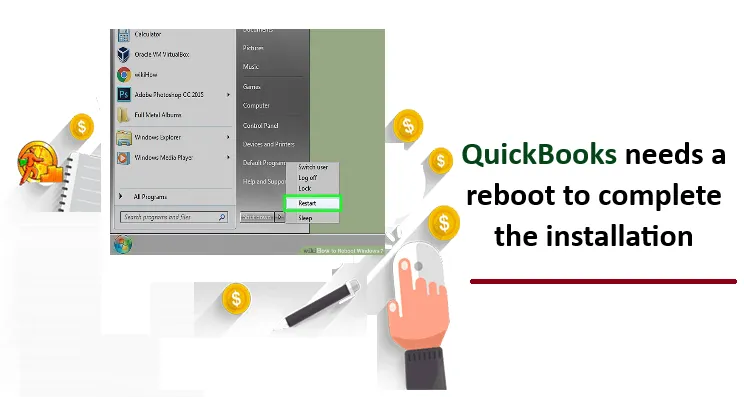
Sometimes, QuickBooks requires a Reboot to complete the installation of updates on its system for the changes to take effect. Still, even after the system has been restarted, the update is incomplete. The prompt keeps coming up repeatedly. Whenever you launch accounting software after a PC restart, you get the notification that QuickBooks 2024 needs to be restarted for the installation to be completed.
What does QuickBooks require that you reboot the loop error?
The QuickBooks Reboot Loop Error is a common installation issue that arises when trying to install QuickBooks Desktop or apply its updates. In such cases, the installer requests a system reboot to complete the setup. However, instead of finishing the installation, the system repeatedly asks for another reboot, trapping you in an endless loop. Along with this, you may also see error messages flashing on the screen.
This error typically shows up when:
- You download the QuickBooks installer and run it as an administrator.
- The setup begins installing components such as VC9, vc_redist x86/x64, without any initial issues.
- Suddenly, the installer triggers a system reboot request.
Here’s what usually happens next:
- You click Yes to reboot as prompted.
- The system restarts normally, but the QuickBooks installer re-launches automatically.
- The same reboot request appears again, putting you back into the same cycle.
If you select No when asked to reboot, the installer displays a message that the installation was “interrupted”, forcing you to start the process from scratch.
Factors causing the QuickBooks require a reboot to complete installation Error
The reboot loop error occurs because the installer fails to recognize that the system has already been rebooted. Instead of moving forward with the installation, it keeps requesting reboots, making it impossible to complete the setup successfully.
Several factors can trigger the QuickBooks update reboot loop error. Some of the most common ones include:
- Corrupted or damaged hard disk: If the hard drive has bad sectors or corruption issues, it can disrupt the installation or update process, leading to repeated reboot requests.
- Missing or damaged QBWUSER.ini file: This configuration file is essential for QuickBooks to run smoothly. If it’s missing or corrupted, the installer may fail to proceed.
- Lengthy company file name: QuickBooks has limitations on the length of file names. Using a long company file name may cause conflicts during installation or updates.
- Improper installation of QuickBooks: If the software was not installed correctly in the first place, the update process can get stuck in a reboot loop.
- Outdated operating system: Running QuickBooks on an outdated version of Windows often results in compatibility issues, including reboot loop errors.
Fixing QuickBooks Requires Reboot to Complete Installation 2024 Error:
Solution 1: Run The Computer In Selective Start up Mode
Make sure no other program is interfering with the process. Follow the instructions below to help with switching to a selective startup mode.
- To access the Run command panel, the user must first press the Windows + R keys.
- Once the Run command screen has opened, you just have to type MSConfig and select OK.
- Next, on the given general tab, the user must select the Selective Startup mode.
- Now you have to select Load System Services as well.
- The user must now select Hide all Microsoft services under the Services menu.
- Next, select the Disable All option.
- Next, you must deselect the specific checkbox labeled “Hide all Microsoft Services.”
- You now need to make sure that the Windows installer option is checked in the provided list of services.
- If it isn’t checked, you must check that specific checkbox.
- Then you have to click on OK.
- You must click the restart option on the computer settings screen after completing all the steps. Try installing QuickBooks again after restarting the computer. After QuickBooks has been installed correctly, return to the standard startup. The normal mode-shifting process is quite practical and requires the following steps to be followed:
- To start, you have to enter the Run command panel by pressing Windows + R.
- Once the screen has opened, you have to type MSConfig and select OK.
- You must now navigate to the specific general tab, choose Normal Startup, and click OK.
- Lastly, you have to select the restart option from the screen of system configuration.
Solution 2: The .NET Framework
To fix this issue, you must have access to an administrator account. If you can use the administrator account, then the procedures given below should help you fix the error:
- You must first log in to Windows to use your administrative account.
- Next, navigate to the Start Menu.
- Now you have to select the Control Panel.
- You must then choose Programs.
- At this stage, select Turn Windows features on or off.
- The next step requires you to turn on .NET Framework 3.5.
- Now restart your computer.
To install any updates, the QuickBooks installer needs the .NET Framework. The installation process will unavoidably fail if it is disabled. Upon logging in, the installer who still needs to finish the installation will do so.
Solution 3: Use QuickBooks to Install Diagnostic Tools
Here’s an additional method to fix QuickBooks, requiring a reboot to complete the installation:
- First, you have to open QuickBooks Tool Hub.
- Now you have to go to the Installation Issues tab.
- Now, you have to choose the QuickBooks Install Diagnostic Tool. It could take several minutes to configure.
- Configuration is followed by clicking Yes to accept the License Agreement.
- To fix the issue, click the “Proceed” button right now.
- After it’s done, restart your computer.
All background processes that are interfering with the QuickBooks update process are terminated by the QuickBooks Diagnostic Tool. Once the diagnostic tool has terminated all active processes, updating the QuickBooks accounting software is simple.
Solution 4: Uninstall and Reinstall QuickBooks
Step 1: Uninstalling QuickBooks Desktop
- Open the Windows Start Menu
- Search for “Control Panel” and open Control Panel
- Select Programs and Features or Uninstall a Program
- Select the version of QuickBooks Desktop you’re having problems with from the list of installed programs
- Select Uninstall/Change and follow the onscreen instructions
- If you don’t see this option, sign out and sign back into Windows as an admin (or a user with admin rights).
Step 2: Using QB Clean Install Tool for Windows
- Your old install folders are automatically renamed by the Clean Install Tool
- When you reinstall QuickBooks, you’ll be able to add new install files
- Select Installation Issues from the QuickBooks Tools Hub
- Clean Install Tool is selected, then “Ok” should be selected
- Choose your QuickBooks and product versions, and then press the Continue button
- When you see the notice, “Please set your QuickBooks installation to the default location”, press the “Ok” button
- You’re ready to reinstall QuickBooks Desktop after the Clean Install Tool completes.
Step 3: Reinstalling QuickBooks in the System
When you’re done with that, download the QB Desktop and reinstall it. Follow the steps to install your version:
- Open the downloaded QuickBooks.exe file
- After that, perform the instructions on your screen
- Accept the software license agreement before moving on to the next step
- Enter your Product and License numbers in the fields provided and then hit “Next.”
- Choose the installation type
- Once selected, the desired type that is right for you
- Select the “Next” button to begin the installation
- When it finishes, then you’re supposed to select the “Open QuickBooks” option.
Conclusion
The “QuickBooks Requires a Reboot to Complete the Installation” error is commonly linked to incomplete installations, missing Windows components, or conflicts with security software. While reboot prompts are normal during installation, repeated reboot loops signal an underlying issue.
By using tools like the QuickBooks Install Diagnostic Tool, updating Windows, and performing a clean install if necessary, you can usually resolve this error and complete the setup successfully. If the problem persists, expert assistance may be required to prevent further disruptions.
Frequently Asked Questions
Why does QuickBooks keep asking for a reboot during installation?
This usually happens when QuickBooks installation files are incomplete, Windows components (like .NET Framework or MSXML) are missing, or other applications are interfering with the setup process.
Can I ignore the reboot message and continue using QuickBooks?
No, if you ignore the reboot requirement, QuickBooks may not install properly and could result in errors, missing features, or failure to launch.
What causes the QuickBooks reboot loop error?
A reboot loop can occur due to:
- Corrupted QuickBooks installation files
- Damaged QBWUSER.ini file
- Outdated or damaged Windows operating system
- A company file with an overly long name
- Conflicts with antivirus or firewall settings
How do I fix QuickBooks installation stuck in a reboot loop?
To fix this issue:
- Run the QuickBooks Install Diagnostic Tool from QuickBooks Tool Hub
- Repair or reinstall Microsoft .NET Framework, MSXML, and C++ components
- Rename or recreate the QBWUSER.ini file
- Ensure your Windows OS is fully updated
- Perform a clean install of QuickBooks if necessary
What if the reboot issue persists after troubleshooting?
If the problem continues, perform a clean install of QuickBooks: uninstall the program, rename installation folders, and reinstall QuickBooks with updated setup files.
Can a damaged hard drive cause the reboot installation issue?
Yes, if the hard drive has bad sectors or corruption, QuickBooks installation may fail repeatedly. Running a disk check (CHKDSK) can help detect such problems.
Should I contact QuickBooks support for this error?
Yes. If you’ve tried all troubleshooting methods and QuickBooks still requires constant reboots, contacting Bigxperts QuickBooks support or IT professionals is the best option.
Speak to A Specialist about QuickBooks Software
Headache🥺. Huh, Save time & money with QuickBooks Support 24×7 @ +1-800-892-1352, we provide assistance to those who face problems while using QuickBooks (Support all U.S. & Canada Editions)
--- Support - We provide solutions for the following QuickBooks (Pro, Premier, Accountant, Enterprise, Payroll, Cloud) ---
- Error Support
- Data Import
- Data Conversion
- Payment Solutions
- Upgradation
- Payroll Support
- Data Export
- Software Integration
- QuickBooks Printer Support
- Complete QuickBooks Solutions
- Tax-Related Issues
- Data Damage Recovery
- Installation, Activation Help
- QuickBooks Windows Support
 1-800-892-1352
 Chat Now
 Schedule a Meeting