QuickBooks payroll tax tables are used for determining accurate tax deductions from employee paychecks. These tables contain tax rates and information for determining payroll taxes. Mistakes and payroll processing errors may occur from out-of-date tax tables. Updating the tax tables updates QuickBooks with the most current tax information. Regular updates also assist you in calculating employee pay and payroll taxes accurately. This post explains how to download, install, and verify QuickBooks payroll tax tables.
What to Check Before Downloading QuickBooks Payroll Tax Tables
Check the following details before downloading QuickBooks payroll tax tables to avoid update problems.
| What to Check | What to Do |
|---|---|
| Back Up Your Company File | Choose File > Back Up Company and save a copy of your company data before updating. |
| QuickBooks Version | Go to Help > Update QuickBooks Desktop > Update Now to install available software updates. |
| Payroll Subscription | Ensure that you have an active QuickBooks Desktop Payroll subscription. |
| Payroll Service Details | Go to Employees > You can also go to My Payroll Service>Account/Billing Information to view your status, billing information, EIN, and PSID. |
| Internet Connection | Ensure the computer has internet access to download the update. |
| Current Tax Table Version | Verify that you have the latest version of the tax table installed. |
| State Unemployment Insurance (SUI) Rate | Make sure you check your state’s current SUI rate and update it manually in QuickBooks as needed. |
How to Download QuickBooks Payroll Tax Tables
Follow these steps to download the latest QuickBooks Desktop payroll update.
- Open QuickBooks Desktop and your company file.
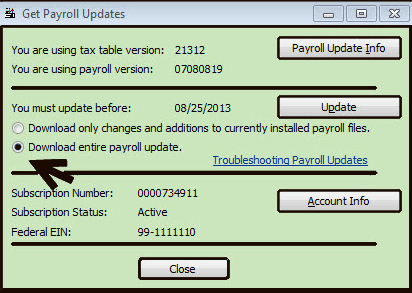
- Go to Employees > Get Payroll Updates.
- Select Download Entire Update.
- Click Update to start the download.
- Wait for the download to finish.
- Follow any instructions in the completion message.
How to Install QuickBooks Payroll Tax Tables Update
Use these steps to install QuickBooks payroll tax tables from a CD in older versions of QuickBooks Desktop.
- Insert the Payroll Update CD into your computer.
- Open QuickBooks Desktop and your company file.
- Go to Employees > Get Payroll Updates. This menu path is available to QuickBooks Desktop Pro and Premier users.
- If prompted by QuickBooks to find an update file, respond as directed by the Install Payroll Update window.
- Click Browse to locate the file on the CD.
- From the Look in drop-down menu, choose your CD drive.
- If the requested file by QuickBooks is one of those present on the disc, like update .dat or update3.dat, locate it. Choose the desired file and click Open.
- Go back to the payroll update window and click ok. Complete any remaining prompts that may appear on the screen.
What to Do If QuickBooks Cannot Find the Update File
If QuickBooks says File Not Found, make sure your computer is reading the CD.
- Close QuickBooks Desktop.
- Click Start, and then select Computer or This PC, depending on your version of Windows.
- Now eject the CD drive and see if the update files are showing.
- If the files do not appear, try the CD in another computer with a compatible CD drive.
- If the second computer can read the files, the original computer’s CD drive may have a hardware problem. If neither computer can read the disc, the CD itself may be damaged.
How to Verify the Installed QuickBooks Payroll Tax Tables Version
Check the installed tax table version to confirm which payroll update QuickBooks Desktop is using. Follow these steps to verify the QuickBooks payroll tax table version.
- Open QuickBooks Desktop and your company file.
- Select Employees from the top menu.
- Click Get Payroll Updates.
- Find the line that says, You are using tax table version: #####. The number shows your currently installed tax table version.
- Click Payroll Update Info to review details about the installed update and its changes.
- Compare your version with the latest available payroll tax table release for your QuickBooks Desktop version.
- If you have an older version, you can download the most recent update at Employees >. Select Get Payroll Updates or check the version again.
Read More: QuickBooks Payroll Calculation Error
Troubleshoot the Latest QuickBooks Payroll Tax Table Errors
While downloading the payroll tax table update in QuickBooks Desktop, you may receive a payroll error. Search for the error code that appears on your screen, and follow the troubleshooting steps for that error.
Fix QuickBooks Payroll Error PS038
Error PS038 occurs when paychecks remain stuck with an Online to Send status. Follow these steps to resolve the error:
- Update QuickBooks Desktop to the latest available release.
- Create a backup of your company file.
- Go to Employees > My Payroll Service > Send Usage Data. If this option is unavailable, go to Employees > Send Payroll Data.
- In the Send/Receive Payroll Data window, select Send All. Enter your payroll service PIN if prompted.
- Try downloading the payroll tax table update again. If PS038 remains, continue with the next steps.
- Go to Edit > Find and open the Advanced tab.
- Under the filters, select Detail Level > Summary Only. Then select Online Status > Online to Send.
- Click Find to identify the paychecks that have not been sent to Intuit. Note the oldest stuck paycheck.
- Close the Find window. Go to File > Utilities > Verify Data to check for company file problems.
- If QuickBooks finds errors in your data, select File > Utilities > Rebuild Data and follow the prompts. If prompted by QuickBooks, back up your file.
- Try downloading the payroll update again.
QuickBooks PSXXX Payroll Update Errors
There can be multiple factors leading to PSXXX errors, such as wrong payroll subscription info, QuickBooks not being registered, an issue with internet settings, firewall security, or corrupt update files. Try these steps in order:
- Exit all your company files and restart your computer.
- Launch QuickBooks Desktop, then Employees, My Payroll Service, and Manage Service Key.
- Verify that your name and payroll service status information are accurate and that Active status is selected.
- Select Edit and verify the service key. Correct it if necessary.
- Click Next, clear the Open Payroll Setup checkbox, and select Finish.
- Try downloading the payroll tax table update again.
- If the error continues, close QuickBooks and open the QuickBooks Tool Hub.
- Select Program Problems > Quick Fix my Program.
- Reopen QuickBooks and try the payroll update again.
Fix QuickBooks Error 15XXX
The QB error codes that begin with 15XXX usually appear when the software fails to download update files, is unable to access necessary components, or fails to validate the existence of digital signatures. Here is what you can do to troubleshoot and fix QuickBooks payroll Error 15XXX.
- Exit your company files and QuickBooks Desktop.
- Right-click on the QuickBooks Desktop icon and select “Run as administrator”.
- If a Windows permission pop-up shows, allow it.
- Download the most recent payroll tax table update for QuickBooks Desktop.
- If the error persists, then close QuickBooks and open the QuickBooks Tool Hub.
- Select Program Problems > Quick Fix my Program.
- Reopen QuickBooks and try the update again.
Fix QuickBooks Payroll Update Error UEXP
Error UEXP appears when QuickBooks cannot verify your account status. If UEXP appears while downloading payroll updates:
- Make sure QuickBooks Desktop is updated to the latest release available.
- Open your company file and select Employees, then My Payroll Service, and finally Manage Service Key.
- If you use direct deposit, select Edit, then Next. Clear the Open Payroll Setup checkbox and select Finish.
- If you do not use direct deposit, Intuit’s instructions say to select Remove and confirm the removal when prompted.
- Try downloading the payroll tax table update again.
Conclusion
Get into the habit of checking tax updates as part of your regular payroll review process, rather than only when you notice a problem. Prior to every payroll run, confirm whether any employee tax information has changed, whether there are new state tax rates, and whether new tax tables are available. Make a note of which version of the tax table you used for each payroll. This will make it easy to reference should a particular calculation regarding taxes need to be looked up in the future and may help you avoid surprises that have an impact on employee paychecks.
Frequently Asked Questions
What is the latest tax table for QuickBooks?
The most recent version of the QuickBooks Desktop Payroll tax table is 22616, which was published on September 22, 2026.
What is the reason QuickBooks isn’t generating payroll tax calculations?
QuickBooks won’t calculate payroll taxes if the tax tables haven’t been updated, employee tax information is set up incorrectly, or payroll preferences are not complete.
Is there automatic payment of payroll taxes via QuickBooks?
Yes, QuickBooks will automatically pay payroll taxes if you are on an automatic payment plan and have completed the setup.
How are payroll taxes entered in QuickBooks?
In QuickBooks Desktop, go to Employees > Payroll Taxes and Liabilities > Pay Scheduled Liabilities. Select the tax liability and click through the prompts.
Does QuickBooks Payroll automatically file Form 941?
Yes, QuickBooks Desktop Payroll Assisted files Form 941 for you. No, QuickBooks Desktop Payroll Enhanced does not file it for you; you have to file it yourself.
Speak to A Specialist about QuickBooks Software
Headache🥺. Huh, Save time & money with QuickBooks Support 24×7 @ +1-800-816-6849, we provide assistance to those who face problems while using QuickBooks (Support all U.S. & Canada Editions)
--- Support - We provide solutions for the following QuickBooks (Pro, Premier, Accountant, Enterprise, Payroll, Cloud) ---
- Error Support
- Data Import
- Data Conversion
- Payment Solutions
- Upgradation
- Payroll Support
- Data Export
- Software Integration
- QuickBooks Printer Support
- Complete QuickBooks Solutions
- Tax-Related Issues
- Data Damage Recovery
- Installation, Activation Help
- QuickBooks Windows Support
 +1-800-816-6849
 Chat Now
 Schedule a Meeting